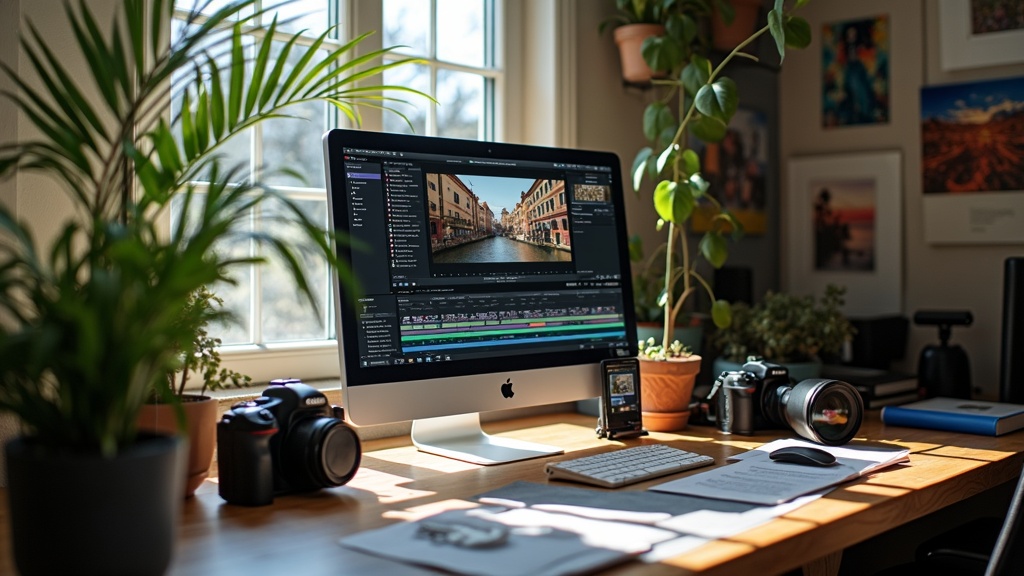
Getting started with photo editing feels pretty exciting, but it can also get a little overwhelming if you’re brand new to the scene. There’s this whole world of tools out there, from simple sliders to a bunch of crazy filters and layer effects. Picking the right software when you’re starting out can really help you avoid headaches and have a smoother learning curve. I’ve pulled together a list of the best software picks for photo editing beginners, with some background on what makes each useful and some tips for getting the most out of them.
Beginner Friendly Photo Editing Software Options
If you’re just stepping into photo editing, it helps a lot to use software designed to be welcoming instead of overwhelming. There are plenty of options, but these programs stand out because of their simple interfaces, built-in tutorials, and practical features.
- Adobe Photoshop Elements
- Canva
- Snapseed
- Pixlr
- Fotor
- GIMP
- Lightroom (Adobe)
- Paint.NET
Each of these tools caters a bit differently to beginners, with some better for simple touch-ups and social media, while others offer more creative control as your skills get better. I’ll break down what makes each one approachable and what kinds of projects they’re best for, so you’ll have a clearer idea of where to start.
What to Look for in Beginner Photo Editing Software
Photo editing tools are not all built the same. If you’re just starting out, it makes sense to go for options that don’t throw all the pro stuff at you right away. Here’s what I find most helpful in beginner friendly software:
- Simple Interface: Clean layouts with labels for all the main tools, so you can find what you need easily.
- Guided Edits & Tutorials: Step by step suggestions or pop-up tutorials are super useful while learning.
- Preset Filters: Built in looks you can apply in one click, which makes it easy to get instant results.
- Undo History: Having the option to undo a bunch of steps really takes the stress out of trying new things.
- Mobile and Web Access: If you like editing on the go or on different devices, having an app or web-based option is a big plus.
Matching your pick with how you want to use it (social sharing, printed photos, hobby projects) keeps the process fun instead of frustrating. Choosing software that makes it easy to start is more important than going for advanced features you might not need yet.
Top Picks for Photo Editing Beginners (With Quick Overviews)
These programs hit the sweet spot between beginner friendly controls and useful features, so you can grow your skills without a huge learning curve. Here’s a quick rundown of why these stand out for people starting out:
- Adobe Photoshop Elements: I see this as Adobe’s answer for newcomers. It’s approachable, with “Quick” and “Guided” modes that walk you through edits like cropping, spot healing, and color fixes. Plenty of tutorials and auto features help you tidy up your shots within a few clicks. Plus, you can grow into more creative edits down the line as you get comfortable.
- Canva: Canva is mainly known for making graphics, but its photo editor is clean and handy for social media ready images. Lots of ready made filters, easy drag and drop tools, and cloud saving make it convenient, so you can continue on any device, even your phone. If you’re designing collages, event invites, or anything you want to share quickly, Canva is tough to beat.
- Snapseed: Google’s Snapseed app is one of my favorites for editing photos right on a phone. You’ll find intuitive touch sliders and smart filters for fixing exposure, boosting colors, and adding that pro look. The healing and brush tools are surprisingly powerful for a free app, worth checking out if you love shooting and sharing with your phone.
- Pixlr: Pixlr is like a lightweight Photoshop in your browser, with easy tools for resizing, cropping, one click retouching, and adding text or effects. It loads fast and even has AI powered background removers now. Beginners can stick to Pixlr X (the simplified version), and if you get more adventurous later, you can jump into Pixlr E for deeper edits.
- Fotor: Fotor leans heavily into presets and auto enhancements, which is great if you want nice looking photos with almost no effort. One touch effects, a bunch of collage options, and an easy workflow for batch editing make it handy for beginners wanting simple and snappy results.
- GIMP: GIMP is open source and totally free. It’s got some cool features for more creative projects, like layers and advanced color controls. The interface is a little more advanced, so it’s a nice choice if you’re ready to check out deeper editing without spending money.
- Lightroom (Adobe): Lightroom’s interface is simple enough, especially on the mobile or web version. Sliding your way through exposure, color, and light adjustments is smooth. The photo management tools are a bonus for people building up a big collection.
- Paint.NET: Paint.NET feels a lot like old school Windows Paint, but it’s modern and comes with plenty of useful features. Layers, special effects, and plug ins keep it flexible, but the layout is still simple, so anyone can follow along.
Tips for Learning Photo Editing as a Beginner
Editing photos really is a skill you build over time. The right software helps you experiment without feeling lost, but there are a few things that always help beginners grow more confident and comfortable:
- Start with Presets: Playing around with built in filters or looks is a smart way to learn how edits change the feel of your photo without getting too “techy.”
- Adjust One Setting at a Time: Slide the brightness up or down, then compare. Try the next setting after to spot the difference and get a sense of what you like.
- Follow Short Tutorials: Even quick two minute guides on YouTube or in app walkthroughs help a lot when you’re stuck or curious about a feature.
- Practice on Throwaway Photos: No pressure if it doesn’t turn out perfect. Sometimes the best way to learn is to mess around and see what happens.
- Save Different Versions: Keep your original safe and make copies as you experiment, so you always have something to return to if needed.
Practicing in this way helps you build confidence, and before long, you’ll find your editing becoming smoother and faster. Don’t forget to check out online communities for more ideas or ask questions if you get stuck.
Things to Consider Before Deciding on Your First Software
You don’t have to find the “perfect” tool right away. A couple of key things can help you pick what will feel most comfortable for your own needs:
- Budget: Plenty of great options are free or have generous trial periods. Paid tools often provide deeper features or include cloud storage.
- Device Type: Some programs work best on desktop, while others shine on mobile. Pick what feels most natural for how and where you like to edit.
- Type of Projects: If you’re mostly doing quick retouches for Instagram, lighter tools with ready made templates make sense. For art projects or learning layer based editing, something like Elements, GIMP, or Paint.NET offers a bit more depth.
How Updates and Community Support Help Beginners
Software that gets regular updates and has a helpful user community can make a big difference when you’re learning. Big name apps like Canva, Lightroom, and Elements usually add new features based on feedback. Free tools like GIMP and Paint.NET have active forums where you can ask questions or find step by step guides made by other beginners. These resources make it easier to troubleshoot and learn as you go.
Accessibility and Cloud Syncing
If you go back and forth between your phone and laptop a lot, or like to edit on the fly, look for software that supports cloud saving. Canva, Lightroom, Pixlr, and Fotor all have good syncing features that let you pick up a project where you left off, no matter what device you’re on. This flexibility can make your editing workflow smoother and help you fit edits into your busy schedule.
Don’t forget to explore these syncing features by trying to edit a photo on one device and continuing on another. It’s a small step that can really open up new ways to edit and share at your own pace.
Frequently Asked Questions About Photo Editing For Beginners
I get a bunch of questions from beginners who want to make their editing adventure a little easier, so here’s what pops up most often:
What’s the easiest photo editing software for total beginners?
Canva and Fotor are about as easy as it gets, especially for quick edits and social media posts. If you want more photo focused tools, Photoshop Elements or Snapseed are really approachable to start with.
Do I need a powerful computer to use these?
Most beginner friendly editors run on standard laptops or phones. If you go for GIMP or Adobe products with high resolution images, a computer with a little more RAM and storage is handy, but you can get by with most setups.
Is it better to learn on mobile or desktop?
Both are great for beginners. Mobile apps like Snapseed and Pixlr are fast and simple, while computers let you see details more easily and handle larger files. Pick whichever fits your workflow best.
Should I pay for photo editing software, or stick to free tools?
If you’re just starting out, free tools are more than enough for most basic and intermediate editing tasks. Once you get comfortable, you can try paid versions for extra features or creative control. Many paid programs offer free trials, so you can test before you commit.
Can I edit RAW files as a beginner?
Some beginner friendly programs, especially Lightroom and GIMP, do let you work with RAW files. If you’re just getting started, you might stick to JPEGs or PNGs first, then jump into RAW editing as you get more confident. Editing RAW offers more flexibility but learning the basics on simple formats is a smart way to ease in.
Start Simple and Grow at Your Own Pace
Photo editing isn’t about using fancy tools right away; it’s more about enjoying the process and getting results you’re proud to post or print. With the programs on this list, you have a bunch of userfriendly ways to start and grow. It helps to just pick one that matches your style and needs now, knowing you can always explore new options as you go. Every edit adds something to your progress, so have fun while you build up your skills!