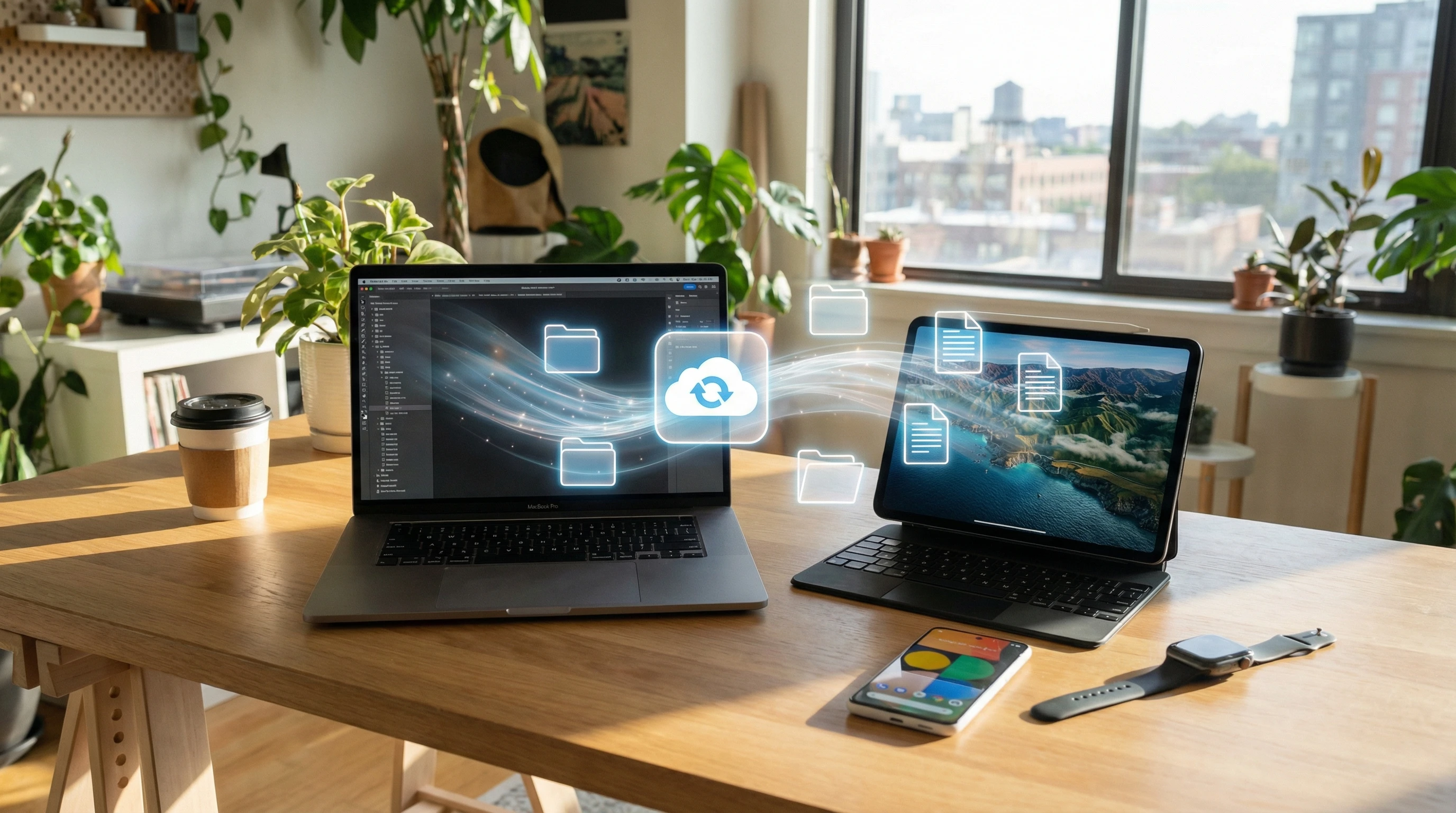
 Welcome to my guide on device synchronization tips. Here, I’m answering some common questions and sharing practical advice to help you keep your digital world in sync without any hassle.
Q1: What does device synchronization mean and why should I care?
Device synchronization is when your devices, like your smartphone, tablet, computer, and even smartwatches, are set up to share the same information. If you read an email on your phone, it’s marked as read on your laptop too. This is pretty handy because it avoids confusion, double entries, or missing important updates. It keeps your digital life way more organized, so you don’t need to search high and low for your stuff. Syncing also means less stress, since you don’t need to manually copy information from one device to another. Instead, everything automatically matches across the board, saving time and effort.
Q2: What do I need before I start syncing my devices?
I always recommend starting with the basics. Make sure all the devices you want to sync support the same services or apps. Most major device brands (Apple, Google, and Microsoft, for example) offer built-in syncing, but you’ll need a reliable internet connection and up-to-date operating systems. You have to use the same account (like your Google, Apple ID, or Microsoft account) on all devices. Updating your passwords and keeping them secure is really important too, since your info gets shared across your whole ecosystem. And don’t forget—keep track of which services you’re logged into so you don’t miss any updates or important notifications.
Q3: Which types of data can I sync across devices?
There’s actually a lot more than you might think. Standard data syncing includes contacts, calendars, emails, photos, notes, and files. Apps like Google Drive, OneDrive, or iCloud let you sync documents, spreadsheets, and other files easily. Browser bookmarks, open tabs, and passwords can be kept in sync too. For music lovers, services like Spotify and Apple Music sync playlists between devices so you always have your music ready. Even settings or app preferences can move between your gadgets, which saves a ton of setup time when you get something new. Some devices let you sync messaging apps or health data as well, depending on your preferences and what you choose in the settings.
Q4: How do I set up syncing between my devices?
The process depends a bit on your device type, but there are some universal steps I always follow. First, sign in to the same account on every device. Then, check the settings of each app or platform you want to sync. For example, on an iPhone, you go to your Apple ID, choose iCloud, and turn on the items you want to share. On Android or Windows, find sync options in your Google or Microsoft account settings. Third-party apps usually have a “Sync” or “Account” section in their settings. It helps to double-check permissions and make sure everything you need is toggled on. Restart your devices if you don’t see immediate changes; this simple step fixes a lot more headaches than you’d think. Don’t forget to make sure there’s enough storage space on your devices or cloud accounts, as running out of space can cause syncing to grind to a halt.
Q5: What should I do if my devices aren’t syncing properly?
I run into this from time to time, and here’s what usually helps. First off, make sure you have a stable internet connection—syncing relies on the cloud, so being online is a must. Next, confirm you’re logged in to the right account on every device. Minor issues, like an expired password or two-factor authentication hiccup, can block syncing without giving any obvious error messages. It’s smart to look for updates to your device’s operating system or sync app and install them if available. Sometimes, toggling the sync option off and back on or signing out and in again does the trick. For tough problems, searching the official support guides from Apple, Google, or Microsoft usually turns up solid fixes. Don’t hesitate to ask community forums too, as other users might have faced similar issues and can offer practical advice.
Q6: Are there security risks I should know about when syncing devices?
The main thing to remember is that synced data moves through the internet, so keeping your accounts secure is super important. I always use strong, unique passwords for every account and turn on two-factor authentication whenever possible. Pay attention to security notifications from your account provider. If there’s anything weird, change your password immediately. If you’re syncing sensitive info, like documents or photos, it’s smart to stick with major platforms that offer encrypted syncing, rather than using random lesser-known apps. Always be aware of who has access to your accounts and devices to avoid unintentional sharing of personal info. Review account permissions and connected devices every so often, and use password managers to keep your credentials secure.
Q7: Can I sync devices that use different operating systems?
This is always a little tricky but definitely doable. Syncing across ecosystems, such as using a Windows laptop, an Android phone, and an iPad together, often means you’ll use thirdparty services. Cloud platforms like Google Drive or Dropbox are great for files, and apps like Microsoft Outlook or Google Calendar help you keep your calendar and email organized. Some browser extensions and crossplatform note apps (like Evernote or Notion) can bridge the gap. You might need to set up things separately for each device, but most major cloud apps support at least the big three: iOS, Android, and Windows. Testing out a few different combinations will help figure out which apps and services make your specific mix of devices work best together.
Q8: What tips help me keep my devices synced smoothly?
Here’s what works for me: set all your devices to update apps and software automatically, which knocks out most compatibility issues. Keep your WiFi on and be sure your power saving settings allow for background syncing, as some lowpower modes pause all sync activity. Occasionally, take a look at your cloud storage limits; if you’re almost full, syncing can get patchy and unreliable. Back up your devices regularly, so if something goes wrong you can recover without much frustration. For peace of mind, set a reminder on your calendar to check your sync setup and security every couple of months. Testing your setup can also help you catch small issues before they become bigger headaches.
Syncing your devices doesn’t have to be complicated. With a bit of planning and a thoughtful setup, you’ll keep your info up to date wherever you are, cutting out unnecessary hassle and confusion. As tech keeps evolving, keep an eye out for new tools and features—sometimes, a fresh update offers even smoother or more reliable syncing options. With everything in place, you’re set for a smoother, more connected digital adventure where all your devices work in harmony.