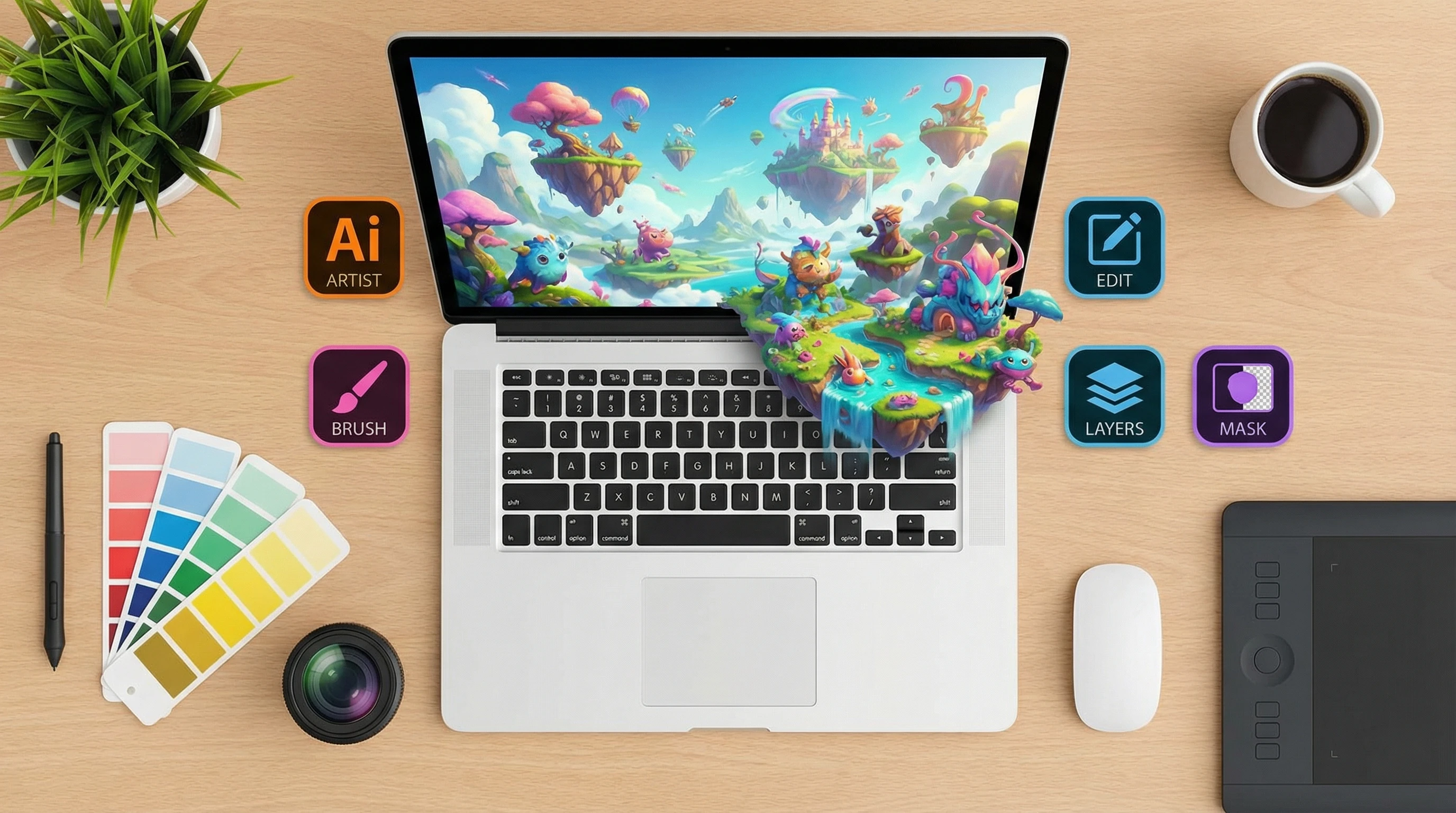
If you’ve ever tried to keep up with content creation, you know how often you need fresh, unique images that fit your brand or messaging. That’s where Image Studio at Wealthy Affiliate comes in to make things way easier than scrambling for stock photos or wrestling with complicated design tools. I’m going to walk you through how this AI image generator works, why it’s especially handy for online marketers and bloggers, what features I think are genuinely useful, and a few tips and real-world examples from my own work on the platform.
What Is Image Studio at Wealthy Affiliate?
Image Studio is a built-in AI-powered design tool created for Wealthy Affiliate members. It’s designed for people who don’t want to bounce between five different apps or fiddle with subscriptions to third party services. If you’re running blogs, building websites, or working on social media, it makes it really simple to whip up custom visuals for posts, headers, ad banners, and more, right inside the Wealthy Affiliate platform.
The cool part is how everything happens from a basic text prompt. You just describe what you want, for example, “minimalist teal coffee mug on a white desk, soft lighting”, and the AI produces several image options in seconds. These aren’t recycled stock images. Each one is custom made, which means you get something truly original that fits your post or page.
Using Image Studio can help give a boost to your site’s visual appeal, and that pays off for engagement and SEO. Images that actually match your topic or keyword help your content stand out in crowded search results.
Why AI-Generated Images Matter for Content Creators
Coming up with unique images on a regular basis can eat up a lot of time, not to mention the risk of copyright issues with free stock photo sites. What makes Image Studio such a timesaver is that you’re no longer limited by what’s available in someone else’s image library. If you need an oddly specific visual like “futuristic hiking boots in neon colors on Mars”, you can make it in just a few clicks.
For me, I use AI images to fill very specific gaps. Sometimes I need a banner that matches a certain mood or a set of images with consistent colors for different sections of a tutorial. Designing those on Canva or Photoshop can add hours to a workflow, especially if I want variations. This tool gives me the freedom to experiment and stay creative without getting bogged down.
Main Features and How They Save You Time
Image Studio is packed with tools that cut down on design time, making content creation run smoother and easier every step of the way:
- Preset Image Sizes: You can choose from a range of different aspect ratios including square for Instagram, vertical for Pinterest, cinematic, YouTube thumbnails, and the classic horizontal format for blog headers. No more manual cropping or guessing the right size for each platform.
- Customizable Styles: You get to pick the art style, whether that’s photorealistic, cartoon, watercolor, 3D, vector, and others. Whether you want slick graphics for tech reviews or soft painterly images for recipes, there’s a filter to fit your brand’s vibe.
- Reference Image Upload: If you need to stick to a certain color palette or use your own logos, just upload a reference image. This is really useful for keeping things on brand, especially across different types of content.
- Immediate Workflow Integration: Because the tool is inside Wealthy Affiliate, you can make images right during article creation. If you’re editing a post and see an empty visual section, you can fill it right then and there and keep working, no switching tabs or external software needed.
- Fast Turnaround: Even if you need some back and forth to tweak prompts, most images are ready in about a minute. This helps keep up the momentum during creative bursts or campaigns with tight deadlines.
Additionally, Image Studio makes sure your creative workflow never stalls. If you happen to think of a new image idea while editing your post, you can bring it to life instantly. For marketers pressed for time, quick visual production can be a game changer for publishing content consistently.
How the Credit System Works
Image Studio runs on a credit system. Each time you generate an image, it uses a number of credits. Wealthy Affiliate hands out free credits with promotions, but if you use the tool a lot, such as testing tons of options, you’ll want to keep an eye on your credit balance.
I’ve found that planning out prompts helps stretch credits further. For batch projects like creating a week’s worth of Pinterest pins, I map out styles and requirements first so I don’t waste credits on off-brand images. For light users who generate a few images each week, the credit system isn’t much of a hurdle. Heavy users, however, should budget their usage and plan accordingly.
What Image Studio Does Well (and Where It Falls Short)
- Pro Quality Visuals: The AI produces sharp, diverse images that look great right out of the gate. They’re easily ready for blog headers, product mockups, motivational posts, and email graphics. For the kinds of visuals you’d want on a modern website or social feed, it delivers high enough quality for most needs.
- Originality: Each image is unique. You don’t need to worry about running into a dozen other blogs using the same stock photo. This is a big plus for branding and niche sites that want to stand out.
- Seamless Experience: Not needing to bounce between tools makes your workflow a lot less scattered. Everything stays inside the same dashboard as your articles and websites.
- Basic Editing: You can tweak prompts, styles, and sizes, but for advanced edits like deep layering or major photo retouching, Image Studio isn’t made to completely substitute Photoshop or more advanced programs.
- Text in Images: The AI sometimes gets text wrong or creates misshapen letters. I usually add any important text after generating the image using Canva or the WordPress editor to keep things crisp and professional.
- Consistent Characters: Creating a mascot, character, or face that’s identical across multiple images can be tricky. It often times requires extra effort or outside editing if perfect repeatability is crucial for your project.
Real-World Uses: How I and Others Apply Image Studio
If you create tutorials, guides, or product reviews, you’ll love being able to whip up images that match the subject closely. I use it for things like:
- Custom blog banners in different artistic styles for various niches
- Pinterest pin backgrounds that are eye-catching and truly one-of-a-kind
- Product mockups using a product photo as a reference for more creative results
- Social media images for quote graphics or quick tips
- Ad creatives featuring on brand colors and unique hooks
I’ve seen other marketers put it to work for digital book covers, course thumbnails, and YouTube video backdrops. The speedy turnaround helps get new posts published faster, and the overall custom look means your site comes off as more authentic and genuinely yours.
Tips for Getting the Most from Image Studio
- Be Specific with Prompts: The more detailed your prompt is about the scene, tone, or style, the closer the AI gets to bringing your vision to life. For example, “high contrast vintage kitchen with teal accents” will typically outshine a generic “kitchen.”
- Use Reference Images: For on brand consistency or logo inclusion, uploading a reference image helps keep things visually glued together.
- Stick to Platform Formats: Choose the right aspect ratio for the end platform. It avoids resizing issues and maintains image crispness on social feeds and blog headers.
- Add Text Post-Generation: Overlay your message using Canva or the WordPress block editor after generating your image. This keeps the text sharp and professional looking every time.
Mixing these techniques allows you to fine tune and improve your output with each project. Keep testing new prompts and styles; over time, your images will become more distinctive and aligned with your brand goals.
Common Questions About Image Studio
How is Image Studio different from Canva, Photoshop, or Midjourney?
Image Studio is fully integrated into Wealthy Affiliate, which means it’s designed specifically for bloggers and affiliate marketers. While tools like Canva and Photoshop are powerful, they require separate logins and usually come with a higher learning curve. Image Studio is built for fast, branded images made right inside your content workflow.
What’s the learning curve for total beginners?
Since all you need to do is type what you want, there’s not much to learn. If you can describe what you want in plain English, you’re ready to get started. Trying out different prompts will help you consistently get good results.
Can I make images that match my brand colors or include my logo?
Absolutely. The upload feature means you can include your own palette or symbols in the generator. However, remember that Image Studio isn’t intended for complex design projects with deep layering—it’s mainly for quick branding, not advanced edits.
Is Image Studio Worth Checking Out?
For bloggers, small business owners, or anyone publishing a bunch of online content, Image Studio covers the need for fast, goodlooking visuals without a steep learning curve. It won’t completely replace pro image editors for intense creative work, but for everyday content needs, it keeps things simple and original.
When I want unique, fully custom visuals for a new blog or landing page without loading up extra apps or worrying about copyright, this is my top choice. It’s a strong fit for a wide range of digital marketing projects and easily saves hours each month that would otherwise go to hunting down suitable stock art or using complicated design tools.
If you plan to publish often, keep your visuals current, and grow your audience or brand, Image Studio inside Wealthy Affiliate is a great asset to keep in your creative lineup.
