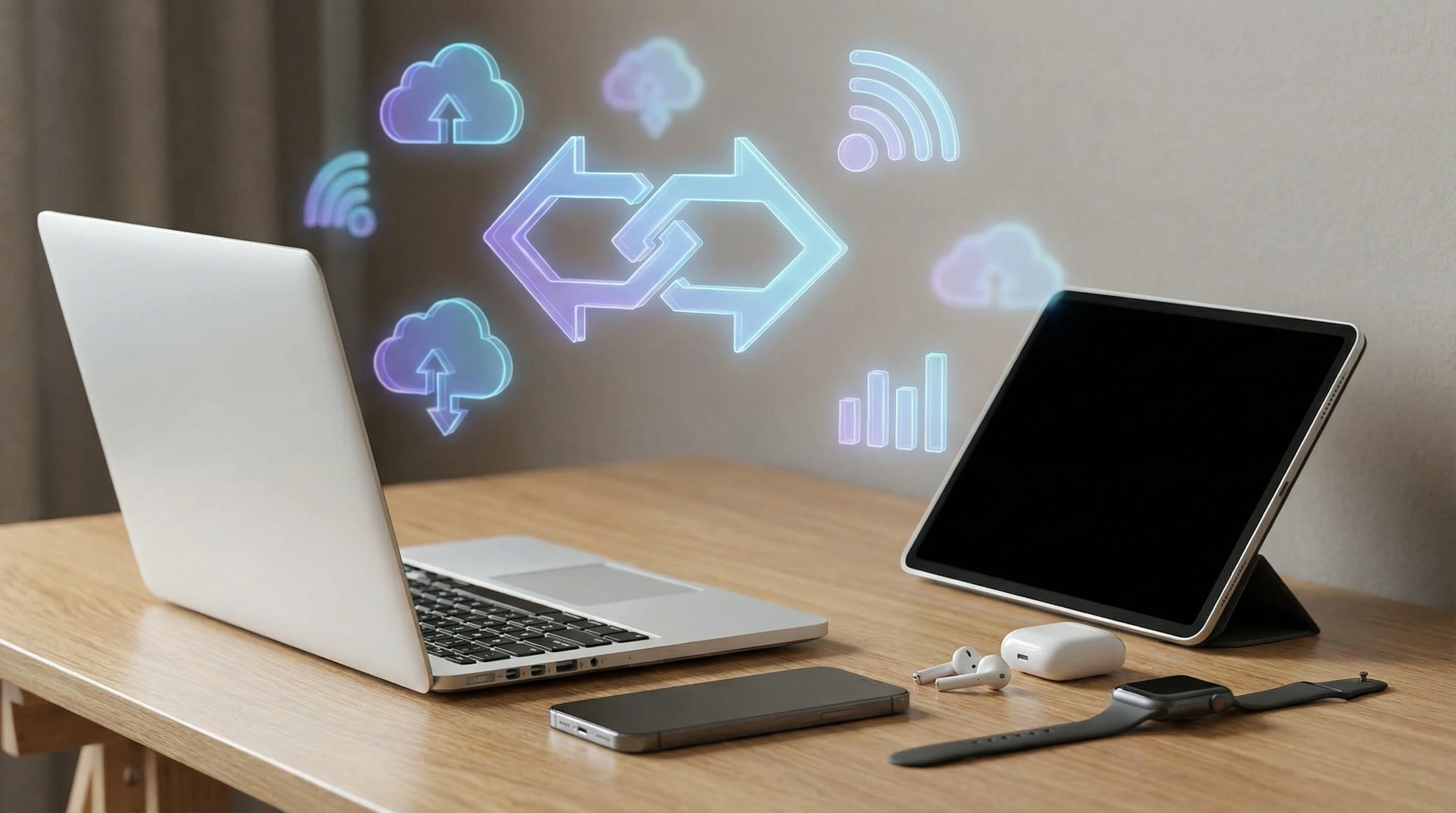
Syncing your devices so everything works together smoothly is one of those upgrades that just makes life and work simpler. If you’ve ever had to email yourself files, plug in USB drives, or juggle different calendars, you know how annoying it can be when your tech doesn’t sync up easily. With the right gear, you can keep your notes, files, messages, music, and even your to-do lists updated across all your gadgets, whether you’re on your phone, tablet, laptop, or even a smartwatch. I’m walking you through some of the best devices and a few extra ways to get seamless syncing that actually works.
Why Seamless Syncing Matters
Keeping your gadgets in sync isn’t just about convenience; it’s a pretty solid time-saver. It also helps cut down on mistakes, missed meetings, or lost files. If you snap a photo on your phone, it shows up right on your laptop. Add a calendar appointment at your desk in the morning, and you’ll get the reminder on your watch when you’re on the move. For people balancing work and personal life, or managing multiple devices, syncing just makes the day run smoother.
An easy flow between your devices also means less frustration, more productivity, and a better experience overall. Instead of hunting for the latest version of your documents or wondering if a file made it over to your tablet, you can just keep moving. Cloud-based services like iCloud, Google Drive, OneDrive, and others keep things updated in real time, but the devices you use play a huge role in how seamless everything actually feels. An extra perk: if you misplace a device, many of these platforms let you find it or even remotely wipe data if necessary. That peace of mind is a real advantage for anyone who relies on staying connected and secure.
Devices That Shine at Syncing
Some gadgets are just designed to play nicely together. There are different types to consider, depending on what you already use and what you want to connect. Here are a few options that pretty much set the bar when it comes to staying in sync across your digital environment.
- Apple Ecosystem (iPhone, iPad, Mac, Apple Watch, AirPods): These devices are basically built to sync with each other. Messages, calls, photos, and even clipboard data move between them in seconds. Setting up is pretty quick if you’re already using an Apple ID for iCloud. Using AirDrop, you can share files instantly even without Wi-Fi.
- Google Pixel Line (Pixel Phone, Chromebook, Nest Hub, Pixel Tablet): If you’re in the Google world, the Pixel lineup does an impressive job syncing with Google’s cloud-based apps. Your docs, contacts, reminders, and photos show up everywhere. Chromebooks in particular are lightweight but perfect for syncing browser tabs, files, and even Android apps using your Google Account.
- Microsoft Surface Devices (Surface Laptop, Surface Pro, Surface Duo, with Windows 11): Running the latest Windows and paired with OneDrive, these devices keep files, settings, and notifications the same wherever you are logged in. If you use Android (especially Samsung), the Phone Link app brings texts, calls, and even app notifications to your desktop or laptop, making everything much more accessible.
- Samsung Galaxy Ecosystem (Galaxy Phones, Tablets, Galaxy Book Laptops, Galaxy Buds, Galaxy Watch): Samsung devices work seamlessly with each other using features like Quick Share, Samsung Cloud, and Samsung Flow. Being able to copy text or images and paste them between devices is especially handy for students or remote workers.
Wearable devices like smartwatches and wireless earbuds add an extra layer of syncing. For instance, you can answer calls or respond to texts from your wrist. Earbuds can connect to your phone, tablet, or laptop, switching between them without hassle. These small touches help complete the all-in-one syncing experience.
Cool Features That Make These Setups Worth Considering
If you’re picking out new tech, it helps to know what makes a syncing experience feel seamless instead of clunky. Here’s what stands out across all these ecosystems:
- Automatic File Sync: As soon as you take a photo, download a document, or update a file, it shows up on your other devices without having to hit a sync button. This is standard in iCloud, Google Drive, OneDrive, and Samsung Cloud, ensuring nothing falls through the cracks.
- Universal Clipboard: Copy on one device, paste on another — no manual steps required. This works between Apple gear, on some Samsung setups, and through a few clever third-party apps like ClipboardFusion.
- Universal Messaging & Notifications: Reply to texts and receive phone notifications right on your computer. Apple’s Messages, Microsoft’s Phone Link (for Android devices), and Samsung’s integration make this happen, bringing all your alerts together in one place.
- Calendar & Reminders: Add an event or a reminder on your phone, and see it pop up everywhere. Good calendar apps (Google Calendar, Apple Calendar, Outlook) are crossplatform and cloud-based for synching perfection.
- Instant Sharing: Features like Apple’s AirDrop or Samsung’s Quick Share let you send files, photos, and even web links between devices almost instantly, with no cables or third-party drives needed.
- Unified Notes and To Do Lists: Take a note during a meeting on your phone, and later read it or edit it from your tablet or laptop. Apple Notes, Google Keep, Microsoft OneNote, and Samsung Notes all make this possible.
- Cross-Device Audio Sharing: Some brands let you switch your earbuds or speakers from one device to another without manually reconnecting — perfect for those who move between calls and music all day long.
Setting Everything Up for Easy Syncing
Getting all this running in real life takes a little setup, but it’s nothing too wild. Here’s what I’d recommend if you want that buttery smooth experience:
- Pick One Ecosystem, If You Can: Gadgets in the same family usually offer the most seamless syncing. Try to stick with one brand or cloud service for emails, contacts, and files.
- Sign in With the Same Account: Whether it’s your Apple ID, Google Account, or Microsoft login, make sure each device is signed in with the same credentials for full syncing magic.
- Enable Syncing Features: Turn on automatic backups, syncing for photos, cloud notes, and document apps right from the settings menu. Double-check permissions; some devices need you to allow sync for specific services, like calendar or contacts.
- Install Official Companion Apps: Apps like Microsoft Phone Link, Samsung Flow, iCloud for Windows, or Google Drive help bridge the gap if you mix devices from different brands. These apps really smooth the way for crossplatform syncing.
- Customize What Gets Synced: You can usually select what data to sync (photos, messages, app data) to save battery and storage, or keep some things private. Fine-tuning sync preferences helps you keep control.
When setting things up, allow time for the initial sync, especially if you have a lot of photos or files. Patience pays off, and soon enough your devices will exchange updates in the background while you focus on what really matters.
Common Syncing Challenges and Easy Fixes
Even the slickest setup can hit a few bumps. Here are some common annoyances people run into, with tips to make them less of a headache:
- Duplicate Contacts or Files: Merge duplicates in the app settings, or use clean-up tools. Regularly reviewing your synced data keeps things tidy and prevents confusion.
- Laggy Syncing or Delays: Make sure you’ve got a reliable Wi-Fi connection and that you’re not running up against storage limits in your cloud account. Restart your device or app if things seem to stall.
- Out of Sync Calendars or Notes: Sometimes a quick sign-out and sign-in, or toggling sync off and back on, refreshes everything. Double-check that your apps are updated to avoid hiccups.
- Files Missing or Sync Errors: Cloud storage limits can cause files to not sync or disappear. Clean out old files, or upgrade to a larger storage plan if needed, for uninterrupted syncing.
Troubleshooting Connection Issues
If your devices just refuse to sync, check for software updates, restart your gadgets, and review the cloud or account settings on each device. If one of your gadgets is on an older version of an app or operating system, this can cause syncing hiccups until you update. Consider resetting your network settings or reconnecting to Wi-Fi if problems persist. Also, make sure your time and date settings are correct on all devices, as mismatched clocks can disrupt syncing.
Mixing Devices from Different Brands
If your setup blends Apple gear with Windows machines or Android phones, third-party solutions like Dropbox, Google Drive, or Evernote help when proprietary cloud isn’t an option. These apps work across just about every platform and make manual syncing a thing of the past. For power users, even more advanced services like Zapier or IFTTT can automate tasks between different apps and devices, letting you set up custom syncing rules and notifications.
Real-Life Examples of Seamless Syncing
I use a mix of work and personal devices: an iPhone, a Windows laptop, and a Samsung tablet. Keeping everything synced used to mean juggling four or five different apps, but after signing into the same cloud services and linking my accounts, my email, calendar, and files started showing up everywhere like magic. Anytime I add a new device, I just sign in and let the setup process bring everything over: app passwords, saved Wi-Fi details, photos, and more. This takes away a lot of stress and keeps my digital life organized with very little effort.
- For Busy Professionals: Keeping meeting notes in OneNote or Google Keep lets you jump from your phone to your laptop with no copying or retyping. Plus, editing documents on the fly with Microsoft Office or Google Docs keeps projects moving, and using cloud-based communication tools keeps everyone on the same page.
- For Students: Notes taken on a tablet are right there on your laptop that night. Google Classroom and Apple’s Schoolwork mean assignments and feedback are available on all connected devices, reducing the risk of missed work.
- For Home Use: Shopping lists or family calendars update instantly for everyone when synced through a shared Google or Apple account. Smart speakers like the Nest Hub or Apple HomePod Mini put reminders just a voice command away, keeping households smoothly coordinated.
Frequently Asked Questions About Seamless Syncing
Question: Is it okay to mix different brands or types of devices for syncing?
Answer: It’s totally fine, but you’ll want to focus on crossplatform apps like Google Drive, OneDrive, Dropbox, or Evernote. These work on almost anything and help make syncing work even if you have a blend of tech at home or work.
Question: How safe is my information when syncing between devices?
Answer: Most major platforms encrypt your data in the cloud and when it’s sent between devices, so it’s pretty secure. Always use unique passwords and twofactor authentication for your accounts for an extra layer of safety.
Question: Can syncing slow down my devices or drain battery?
Answer: If you’re syncing lots of big files or keeping everything updating in real time, you might see a little more data usage or battery drain. Tweaking what gets synced under settings helps keep things running smoothly and lets you focus on the essentials.
Question: Are there syncing solutions for Linux or less common devices?
Answer: Yes! Services like Dropbox, Nextcloud, and Google Drive run on many platforms, and there are open source options for Linux users, too. It may take a bit of setup, but it works well in most cases.
The Bottom Line on Syncing Devices
Getting all your gadgets working together isn’t just a nice-to-have. It really does help you work faster, stay organized, and keep your digital life less stressful. By sticking to one ecosystem when possible and using powerful cloud apps when you’re juggling different brands, you can keep everything synced up and ready no matter where you are. Just be sure to set things up right from the start and review your settings now and then. The best syncing setups are the ones you hardly have to think about.
Staying in sync frees you up to focus on what matters, whether that’s work projects, creative hobbies, or just making sure you don’t forget your grocery list again. If you haven’t set up syncing across your devices yet, it’s totally worth checking out—your workflow and peace of mind will thank you.
Hello!
This was a very helpful roundup — thank you! I’ve been trying to streamline my tech so everything just works together without the constant frustration of lost files or mismatched calendars, and your breakdown of devices that sync seamlessly gave me some clear ideas instead of just vague recommendations. It’s easy to get overwhelmed when every product claims to be “the best,” so seeing real benefits and use cases side by side made the choices feel much more grounded.
I’m curious — do you find that certain ecosystems (like Apple vs Android/Windows) still dominate in terms of ease of syncing, or have third-party tools really leveled the playing field? And for someone who wants simplicity more than all the bells and whistles, is there a particular device combo you’d suggest as a reliable “starter set” that just works without a long setup? Thanks again — this gave me a much clearer picture of what to look for!
Angela M :j
It’s so exciting that this Article helped you according to your quest 🙂
Best starter set for simplicity most reliable Least setup is “Apple Combo” iPhone+iPad or Mac. Turn it on ,sign in,and it works.
Third party tools sync files well but they can’t match deep system features like AirDrop or iMessage.
So Apple is the most seamless and simplest experience
while Android + windows is flexible but needs a bit more setup